Three.jsのサンプルにあるMarching Cubesを使って、3Dのメタボールを作っていこうと思います。サンプルにあるものを解説したものになります。非常に簡単なので、ぜひチャレンジしてみてください。
Demo : https://misora.main.jp/metaball/
以下のサンプルサイトを参考にしています。

1.Basic

デモにあるように、5つのメタボールを表示させていきたいと思います。three.jsのデフォルトに含まれているMarchingCubes.jsを使っていきます。以下をコピペすることで表示できると思います。
three.js
import { MarchingCubes } from 'three/addons/objects/MarchingCubes.js';// Material designation
const materials = generateMaterials();
let current_material = 'basic'; // <= Material_Name
//
let resolution = 40;
// Make MARCHING CUBES
const effect = new MarchingCubes( resolution, materials[current_material], true, true, 100000 );
effect.position.set( 0, 0, 0 );
effect.scale.set( 4, 4, 4 ); // individual setting
effect.enableUvs = false;
effect.enableColors = false;
scene.add( effect );
// Upedate Contorll Parameter MARCHING CUBES
const effectController = {
material: 'basic', // <= Material_Name
speed: 3.0, // スピード
numBlobs: 5, // 個数
resolution: 40, // 細かさ
isolation: 100, // 離れる 10~100
floor: false, // With/without floor
wallx: false, // With/without wall
wallz: false, // With/without wall
dummy: function () {}
};////////////////////////////////////////////////////////////////////////
///// Material setting
function generateMaterials() {
const materials = {
'basic': new THREE.MeshBasicMaterial({
color: 0x6699FF,
wireframe:true,
}),
'shader':new THREE.ShaderMaterial({
uniforms : {
uPixelRation : {value:PixelRation},
uResolution: {value: new THREE.Vector2(window.innerWidth, window.innerHeight)},
uTime: { value: 1.0},
uColor: { value: new THREE.Color(0x42a9f1)},
viewVector: { value: new THREE.Vector3(0, 0, 20)},
},
vertexShader:Vertex,
fragmentShader: Fragment,
side:THREE.DoubleSide,
transparent:true,
wireframe: false,
}),
};
return materials;
}const clock = new THREE.Clock();
let time = 0.0;
function rendeLoop() {
//stats.begin();//stats計測
const delta = clock.getDelta();
// marching cubes
time += delta * effectController.speed * 0.5;
if ( effectController.resolution !== resolution ) {
resolution = effectController.resolution;
effect.init( Math.floor( resolution ) );
}
if ( effectController.isolation !== effect.isolation ) {
effect.isolation = effectController.isolation;
}
updateCubes( effect, time, effectController.numBlobs, effectController.floor, effectController.wallx, effectController.wallz );
renderer.render(scene, camera) // render the scene using the camera
requestAnimationFrame(rendeLoop) //loop the render function
//stats.end();//stats計測
}
rendeLoop() //start rendering////////////////////////////////////////////////////////////////////////
///// marching cubes Update
function updateCubes( object, time, numblobs, floor, wallx, wallz ) {
object.reset(); // Delete marching cubes
const subtract = 12;
const strength = 1.2 / ( ( Math.sqrt( numblobs ) - 1 ) / 4 + 1 );
for ( let i = 0; i < numblobs; i ++ ) {
// Postion Animation
const ballx = 0.5 + 0.3 * Math.sin(i*0.5 + time);
const ballz = 0.5;
const bally = 0.5;
object.addBall( ballx, bally, ballz, strength, subtract );
}
if ( floor ) object.addPlaneY( 2, 12 ); //floor
if ( wallz ) object.addPlaneZ( 2, 12 ); //wall
if ( wallx ) object.addPlaneX( 2, 12 ); //Wall
object.update();
}ワイヤーフレームの球体がアニメーションして表示できると思います。
generateMaterials()の中に、マテリアル名を付けて、自分の好きなマテリアルを自由に設定できます。
2.InnerGrow Material

インナーグローのマテリアルで、デモにあるようなカッコいいものにしようと思います。以前の記事に同様のものを記述しております。こちらもぜひご覧ください。
Misora Ryo Experimental World BLOG
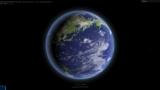
指定のマテリアル名を”basic”から”shader”に変更して、shaderMaterialが適用するように設定していきます。
three.js
import Vertex from "./vertex.glsl";
import Fragment from "./fragment.glsl";
const materials = generateMaterials();
let current_material = 'shader'; // <= ★ Change the name 'basic' to 'shader'
~
// Upedate Contorll Parameter MARCHING CUBES
const effectController = {
material: 'shader', // <= ★ Change the name 'basic' to 'shader'
speed: 3.0, // スピード
numBlobs: 5, // 個数
resolution: 40, // 細かさ
isolation: 100, // 離れる 10~100
floor: false, // With/without floor
wallx: false, // With/without wall
wallz: false, // With/without wall
dummy: function () {}
};/////////////////////////////////////////////////////////////////////////
///// marching cubes Update
function updateCubes( object, time, numblobs, floor, wallx, wallz ) {
object.reset(); // Delete marching cubes
const subtract = 12;
const strength = 1.2 / ( ( Math.sqrt( numblobs ) - 1 ) / 4 + 1 );
for ( let i = 0; i < numblobs; i ++ ) {
// Postion Animation
const ballx = 0.5 + 0.3 * Math.sin(i*0.5 + time);
const ballz = 0.5;
const bally = 0.5;
object.addBall( ballx, bally, ballz, strength, subtract );
// ★Material upadate
object.material.uniforms.viewVector.value = camera.position;
object.material.uniformsNeedUpdate = true;
}
if ( floor ) object.addPlaneY( 2, 12 );
if ( wallz ) object.addPlaneZ( 2, 12 );
if ( wallx ) object.addPlaneX( 2, 12 );
object.update();
}vertex.glsl
/*vertex.glsl*/
uniform vec3 viewVector;// CameraPosition
uniform vec2 uResolution;
varying vec2 vUv;
varying float opacity;

void main() {
    vUv=uv;
    vec4 modelPosition = modelMatrix * vec4(position, 1.0);
    vec4 viewPosition = viewMatrix * modelPosition;
    vec4 projectionPosition = projectionMatrix * viewPosition;
    gl_Position = projectionPosition;

    vec3 nNomal = normalize(normal);
    vec3 nViewVec = normalize(viewVector);
    opacity = dot(nNomal, nViewVec);
    opacity = 1.0 - abs(opacity*1.3);
}
fragment.glsl
/*fragment.glsl*/
uniform vec3 uColor;
uniform vec2 uResolution;
uniform float uPos;

varying vec2 vUv;
varying float opacity;

void main() {

 	vec2 uv = vUv;

	vec2 dist = gl_FragCoord.xy / uResolution;
	vec3 cc = vec3(0.0, dist.x, dist.y);

	///////////////////////////////////////////////////////////////////////////////////////
	// 出力
	vec3 balck = vec3(0.0,0.0,0.0);
	vec3 color = mix(balck, cc, opacity);
	gl_FragColor = vec4(color, 1.0);
}
正しく表示されれば、マテリアルの設定は完了です。カメラの位置情報をマテリアルに送信して、インナーグローを実現させています。
3.Animation
まず動きを制御しないで、ノイズを使って、ゆらゆらしてもらおうと思います。以下のサイトからnpmを使って、ノイズのjsをダウンロードしましょう。
simplex-noise

three.js
import { createNoise2D } from 'simplex-noise';
const noise2D = createNoise2D();
/////////////////////////////////////////////////////////////////////////
///// marching cubes Update
function updateCubes( object, time, numblobs, floor, wallx, wallz ) {
object.reset(); // Delete marching cubes
const subtract = 12;
const strength = 1.2 / ( ( Math.sqrt( numblobs ) - 1 ) / 4 + 1 );
for ( let i = 0; i < numblobs; i ++ ) {
// Postion Animation
// const ballx = 0.5 + 0.3 * Math.sin(i*0.5 + time);
// const ballz = 0.5;
// const bally = 0.5;
// ★Postion Animation
const ballx = 0.5 + noise2D( i * 1.85 + time*0.25, i * 1.85 + time*0.25 ) * 0.25;
const ballz = 0.5 + noise2D( i * 1.9 + time*0.25, i * 1.9 + time*0.25 ) * 0.25;
const bally = 0.5 + noise2D( i * 1.8 + time*0.25, i * 1.8 + time*0.25 ) * 0.25;
object.addBall( ballx, bally, ballz, strength, subtract );
// Material upadate
object.material.uniforms.viewVector.value = camera.position;
object.material.uniformsNeedUpdate = true;
}
if ( floor ) object.addPlaneY( 2, 12 );
if ( wallz ) object.addPlaneZ( 2, 12 );
if ( wallx ) object.addPlaneX( 2, 12 );
object.update();
}これで、デモにある感じのものが作成されたと思います。(デモ版にはポストプロセッシングが追加されています)
function updatecube()のPosition Animationの箇所、ballx,bally,ballz を制御すればいろいろな動きを設定できます。
中心がxyz( 0.5, 0.5, 0.5 )で、-1.0~1.0を超えると壁に当たって、ボールが表示されなくなるので注意が必要です。

4.完成!
簡単でしたね!
ちょっとしたメインビジュアルや背景に使えば、カッコいいものができると思います。音と組み合わせたりすれば、いろいろとアレンジが広がりますね。
Demo : https://misora.main.jp/metaball/
Marching Cubesの詳細を説明していませんでした。以下のサイトがわかりやすかったです。ぜひ参考ください。
参考書庫

また、音と組み合わせるならTextalive APIをおすすめいたします。(主に曲の歌詞をタイミング良く表示できるものです。使い方はのちにブログにいたします。)


以上、記事が良かったらXのフォロー、また、もう一つ私の記事をご覧ください。